Oops! Something went wrong while submitting the form.
🍪 Cookie settings
By clicking “Accept all”, you agree to the storing of cookies on your device to enhance site navigation, analyze site usage, and assist in our marketing efforts. See ourPrivacy Policy for more information.
Converting a Figma mockup into a functional website with Webflow is a crucial process to speed up web development while meeting modern design standards. With the Figma to Webflow plugin, you can now sync your designs without writing a single line of code, by exporting them from Figma to Webflow. This innovation gives designers full control over the look of their site while making collaboration with developers easier.
In this article, we take you step-by-step through this process, detailing the plugin's functionalities, advantages, limitations, and steps to follow to ensure a smooth transition between Figma and Webflow.
Figma to Webflow - Overview
What is the Figma to Webflow plugin?
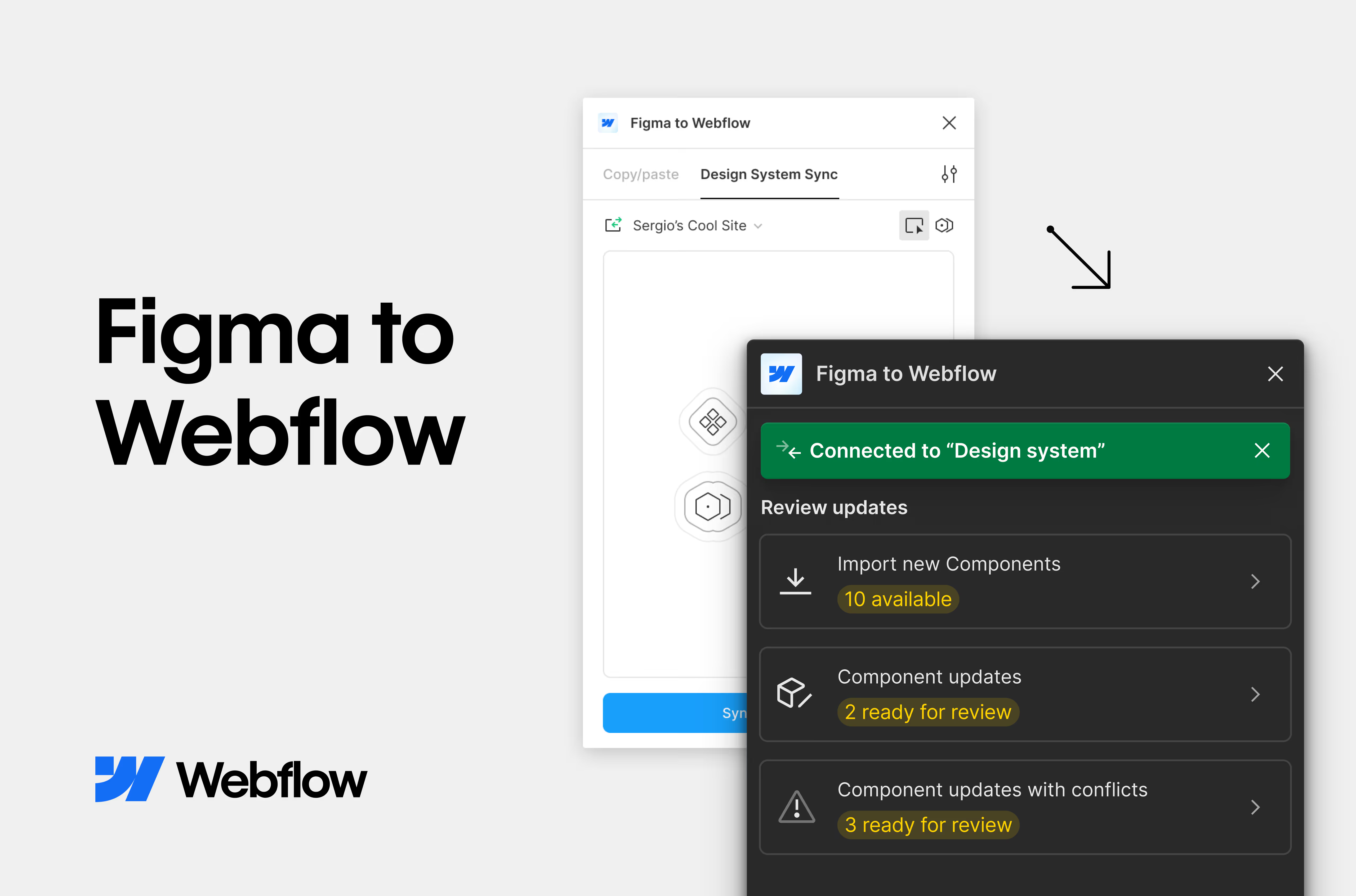
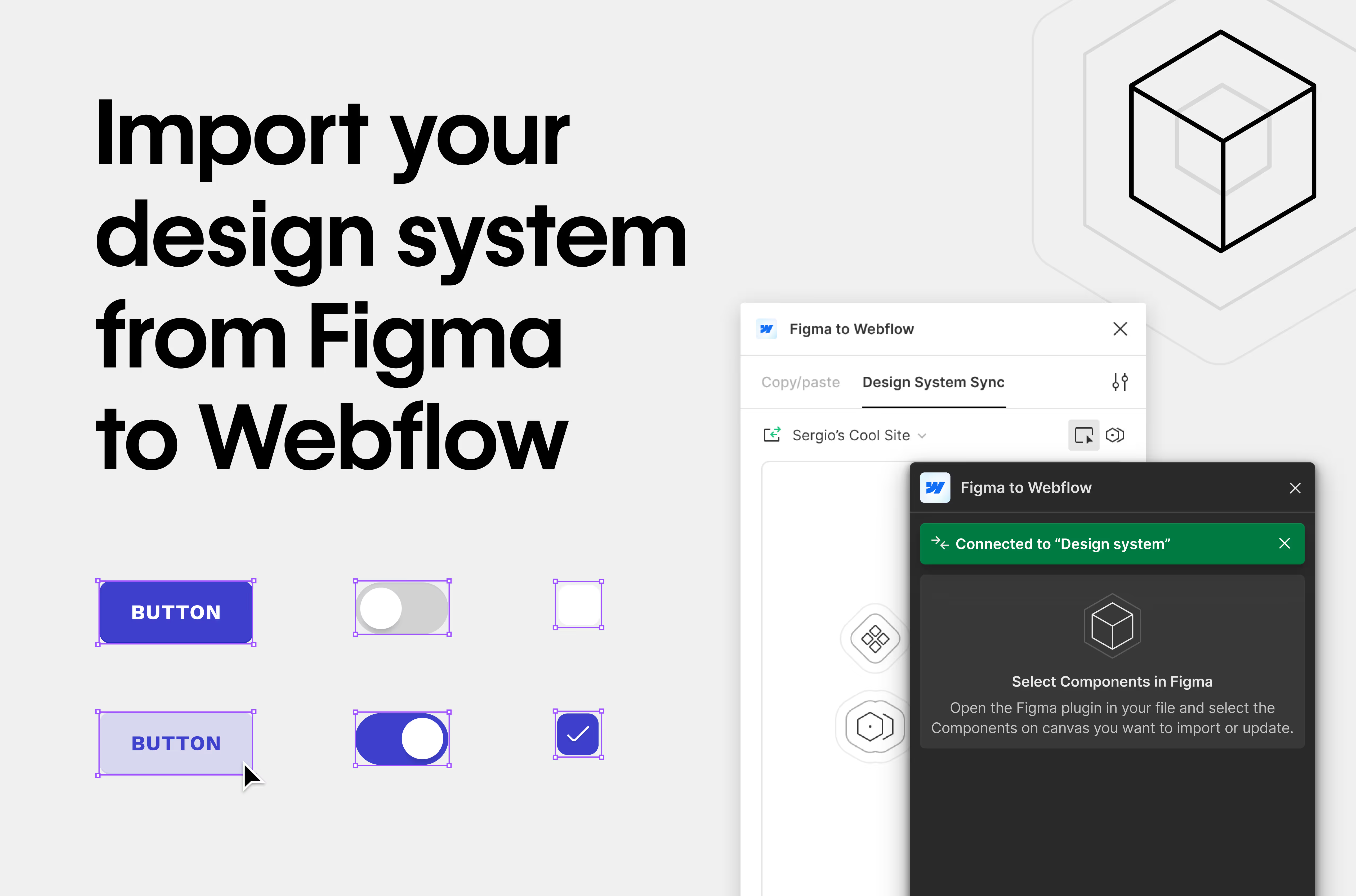
The Figma to Webflow plugin allows you to transform your Figma designs into HTML and CSS elements that can be used directly on Webflow. Unlike manual methods, this plugin automates much of the work, reproducing essential design elements such as:
Custom fonts, colors and shadow styles
CSS grids and flexboxes for a dynamic layout
Auto layouts and precise positioning of elements
SVGs and optimized images for fast loading
This automation not only simplifies the process and makes it easier to integrate complex interactions after the Figma export, it also significantly shortens development and guarantees perfect consistency between the design and the final rendering.
Why use Figma and Webflow together?
The combination of Figma and Webflow offers a powerful and efficient method for building modern sites without going through complex coding steps. Here are the main advantages of this combination:
Reduced development time
Automatically transferring Figma designs into Webflow sites helps you save time by avoiding repetitive coding steps.
Less back and forth between design and development teams improves the workflow.
Better collaboration between teams
Designers, developers and marketing teams can work together on synchronized Webflow projects, with better coordination between the project's stages and a smooth transition.
Responsive design guaranteed
The plugin facilitates the optimization of websites for all devices (desktop and mobile).
Increased productivity with Webflow CMS
The Webflow CMS allows you to easily manage dynamic content (blogs, portfolios, product pages).
The plugin also simplifies the integration of dynamic content between Figma and Webflow.
Figma to Webflow - Design System
How do I use the Figma to Webflow plugin?
The Figma to Webflow plugin makes it easy to convert your Figma mockups into a functional Webflow site. Here are the key steps to use it effectively and ensure a smooth, optimized transition.
Step 1: Install the plugin and link your Webflow account
Open Figma, go to Plugins, search Figma to Webflow and install it.
Once installed, connect your Webflow account by authorizing the plugin to access your projects. This allows you to synchronize your Figma designs directly with your Webflow sites.
Step 2: Prepare your Figma mockups
Select the items to export: identify the icons, images or SVGs to transfer to Webflow.
Configure export options:
Use Ctrl + Shift + E (or Cmd + Shift + E on Mac) to export your items.
Make sure your images and files are optimized for the web (lightweight formats like PNG or SVG for better performance).
Import into Webflow: drag your files directly into Webflow's Assets panel to add them to your project.
Step 3: Synchronize global styles
Consistent styles: sync the colors, fonts and styles defined in Figma with Webflow's global settings. This ensures visual consistency between your mockup and the final site.
Use layout tools:
Apply auto layouts in Figma for responsive designs. These layouts translate easily into Flexbox in Webflow, with clean management of CSS classes.
CSS grids imported from Figma ensure a well-ordered structure, essential for a responsive site.
Step 4: Test and optimize the site
Adjust SEO tags: set up titles, descriptions and alt text to optimize SEO from the start.
Configure breakpoints: use Webflow's tools to adapt your site to different screen sizes (desktop, tablet, mobile).
Add advanced interactions: use Webflow's dynamic animations and interactions to enrich the user experience. These features turn static mockups into interactive, engaging sites.
Figma to Webflow - Components
Optimizing the design in Webflow after import
Importing a mockup from Figma into Webflow is a major step, but it is only the beginning. To get the most out of your design, you need to optimize your site in Webflow for strong performance, intuitive navigation and an impeccable user experience. Here's how to do it effectively:
Structure sections and divs correctly
A well-organized structure is crucial to ensure smooth navigation and fast loading time.
Element hierarchy: organize sections, containers, divs and items logically. This makes it easier for browsers and search engines to understand the structure.
Appropriate HTML tags: make sure headings use the correct tags (H1, H2, etc.), that images have relevant alt attributes and that links are properly tagged.
Optimized CSS classes: rename and organize your CSS classes so they are intuitive and reusable, which makes maintenance and updates simpler.
Test compatibility across devices and browsers
Responsive design is essential to offer a consistent experience to your users, regardless of their device or browser.
Test breakpoints: Webflow offers built-in tools to adjust your design for desktop, tablet and mobile resolutions. Check that each item displays correctly and adjust margins, padding or image sizes as needed.
Cross-browser compatibility: test your site on popular browsers like Chrome, Firefox, Safari and Edge to identify and fix any display issues.
Mobile performance: make sure the site is fast and easy to navigate on mobile, where most users now browse the web.
Use the Webflow CMS effectively
The Webflow CMS is a powerful tool for managing dynamic content such as blogs, portfolios or product pages. Make full use of its features to optimize how you manage your site.
Connect dynamic content: link your imported designs to CMS collections. For example, use a base structure for blog posts or product pages so they can be updated quickly and consistently.
Task automation: set up dynamic fields to automate data management (titles, images, descriptions), reducing the time needed for each update.
Custom CMS templates: create dynamic pages with designs adapted to each type of content, for a professional and consistent presentation.
Ensure maximum performance
Finally, beyond design, optimize the overall performance of your site:
Media compression: make sure your images and videos are optimized for the web, for example with modern formats like WebP.
Code minification: use Webflow's options to reduce the size of CSS and JavaScript so pages load faster.
SEO optimization: check meta tags, page titles and descriptions to improve your site's visibility on search engines.
By following these steps, you will transform your Figma mockups into a Webflow site that is not only true to your initial design, but also powerful, intuitive and ready to win over users on all devices.
Figma to Webflow - Updates
Limitations of the Figma to Webflow plugin
Despite its many advantages, the Figma to Webflow plugin has some limitations:
One-way sync: changes made in Webflow are not automatically reflected in Figma.
Complex animations: for advanced interactions, it is better to use Webflow's native tools.
Need for rigorous testing: each imported element must be tested to make sure it renders correctly on all devices, and the design in Figma must be optimized beforehand.
Conclusion: Figma to Webflow, a winning alliance
The Figma to Webflow plugin is changing web development by making the conversion of designs into functional sites fast and intuitive. By automating transfer steps, it frees teams from tedious technical tasks so they can focus on creativity, design and optimization.
However, to get the most out of your project and guarantee a successful result, working with a Webflow agency is a strategic option. An expert team can fine-tune adjustments, integrate advanced features and turn your ideas into an attractive, smooth website fully adapted to your needs.
Frequently asked questions about the Figma to Webflow plugin
Can I use the Figma to Webflow plugin for an e-commerce site?
Yes, you can use it to create e-commerce sites with Webflow. Once your designs are imported, Webflow allows you to integrate advanced e-commerce functionalities, such as product management, orders, and a dynamic CMS for total control.
What Webflow plan should I choose to get started?
Webflow offers several plans adapted to your needs. For simple projects, the “Basic” plan may suffice. However, for an e-commerce site or advanced functionalities, the “CMS” or “Business” plans are recommended.
Do I need to be a developer to use Webflow?
No. Webflow is designed to be no-code for marketers and designers, while remaining low-code for developers who want advanced customization. This flexibility makes collaboration between creative and technical teams more effective.
How do I manage dynamic content after import?
With Webflow's CMS, you can easily link your designs to dynamic content such as blog posts, portfolios, or products. The Figma to Webflow plugin simplifies this transition by generating structures ready to host dynamic databases.
Are animations created in Figma transferable to Webflow?
Simple animations can be partially transferred, but for complex interactions or micro-animations, it is best to use Webflow's advanced interaction tools directly, which offer precise customization and optimal performance.
Is the Figma to Webflow plugin compatible with all Webflow versions?
Yes, the plugin is compatible with recent versions of Webflow. However, make sure that your tools, including Figma and Webflow, are up to date to ensure a smooth sync and take advantage of the latest features.